Install the protocol.
Pick your device. One account covers all of them, and the Judge follows you everywhere.
// Phone
iPhone
App Store · iOS 16+
Coming to the App Store. Beta testers can check their access with the email they were approved with.
Android
Google Play · Android 8+
Live on Google Play. Free to start.
// Computer
Windows
Windows 10 and 11 · 64-bit · 5.0 MB
Your Focus Blocks and feed schedule on the computer too, and a call back when your coding agent is done.
Mac
macOS 12.3 or later · 8.9 MB
Your Focus Blocks and feed schedule on the computer too, and a call back when your coding agent is done.
Already downloaded? Sign in
The limits live on your phone.
Aegin learns how you use each app, warns you first, and closes the app if you carry on. You can always make your case.
Illustration of the three steps. The wall on iPhone uses Apple's own shield screen, which has less room.
Aegin for Android
Android 8 or later · Google Play
- 1Install Aegin from Google Play.
- 2Sign in or create your account.
- 3Turn on the access Aegin asks for, so it can see which app is open and close it. Aegin explains it before you switch it on.
Free to start. The same account signs in on your phone and your computer.
What it does
Learns first
It reads how you really use each app before it shuts anything.
Warns before it blocks
A wall is never the first move. You get a nudge, then a heads-up with a countdown.
Hears your case
Need an app back? Make your case to the Judge. It can say yes, not yet, or no.
Focus Blocks
Schedule windows where the apps you choose stay shut, like work hours or wind-down.
Limits set themselves. To change one, ask Aegin AI or make your case.
// PERMISSIONS
What Aegin asks for, and why.
- iPhone
Screen Time access
Aegin uses Apple’s Screen Time controls. You choose the apps in Apple’s own picker, and iOS does the closing.
- Android
Accessibility access
Aegin reads only which app is in front, so it knows when to close it. It also asks to show over other apps, which is how the wall appears.
Aegin on your computer.
Your computer's screen time, your Focus Blocks and feed schedule held on the computer too, and Aegin AI from a real keyboard.
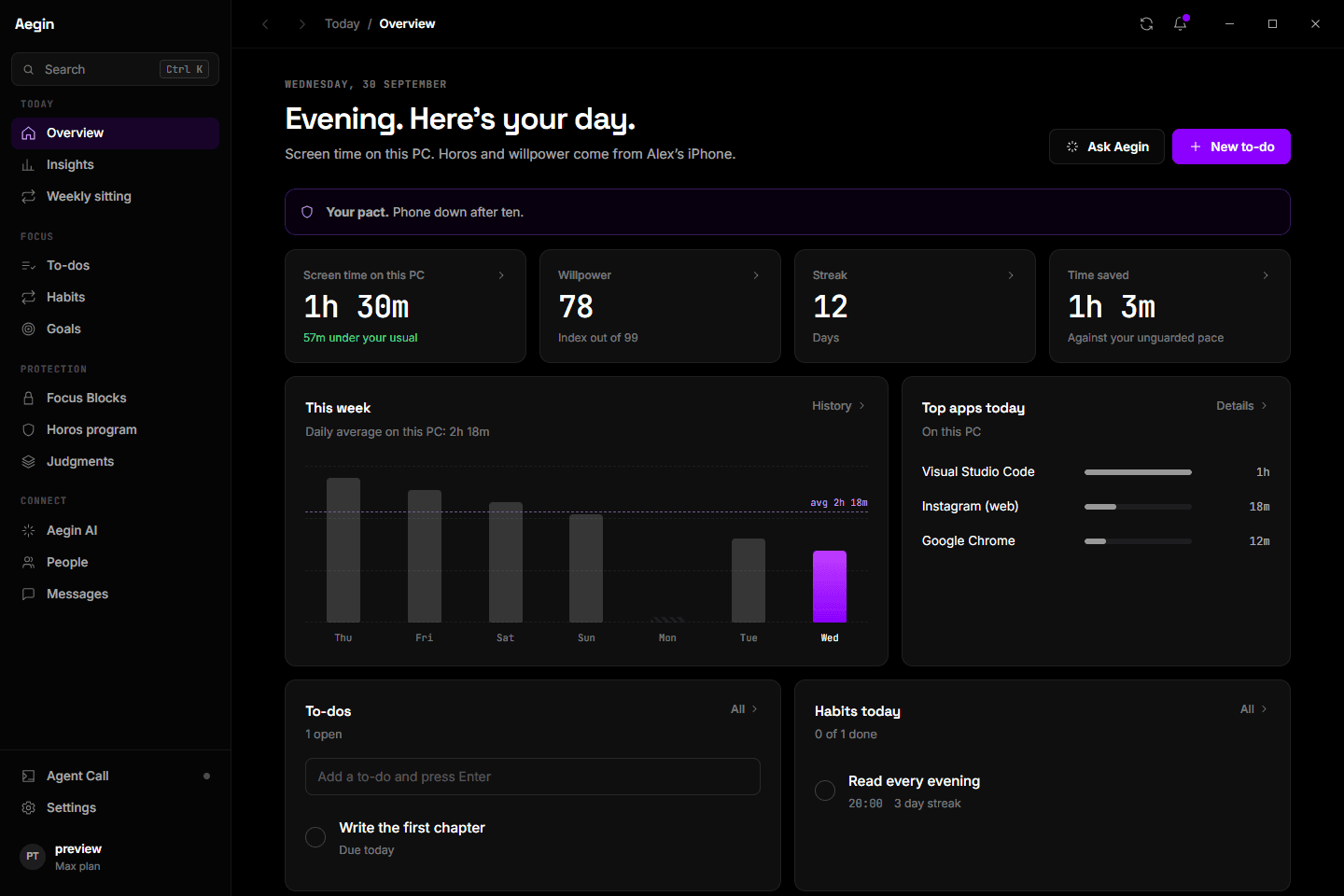
Aegin Desktop for Windows
Windows 10 and 11 · 64-bit · Version 0.3.1 · 5.0 MB
- 1Run the file. Windows may warn you first, because the app isn't code-signed yet. Choose More info, then Run anyway.
- 2Sign in with the same account you use on your phone.
- 3Leave it running. Closing the window tucks Aegin into the system tray, and it updates itself.
The installer shows the license agreement before anything is installed. Read our Terms and what Desktop records in our Privacy Policy.
Verify the download
SHA-256 of the file you download. Compare it with the result of certutil -hashfile Aegin_0.3.1_x64-setup.exe SHA256.
6eb3bc59f43813845ba3ca3e77fb538bd1652167af585539fbc3256579184138What it does
Plan
To-dos, habits, goals and Focus Blocks, written on a full keyboard and saved to your account.
Read your week
Willpower, streak and time saved, plus your computer’s own screen time. Private windows are skipped, and for a website only the domain is kept.
Holds your limits
When a Focus Block or your feed schedule has a site, app or game closed, Aegin covers it on the computer too. You can plead your case from the cover.
Ask Aegin AI
The same Aegin AI and the same memory as on your phone.
Agent CallPro and Max
When Claude Code, Codex or Cursor finishes, needs you or fails, Aegin walls the apps you picked on your phone.
Your phone and your computer share one account, one schedule and one Judge.
// AGENT CALL
Step away while your agent works. Get pulled back when it's done.
- 01
Your agent stops
A hook in Claude Code, Codex or Cursor tells Desktop that work is done, needs you or has failed. You connect each one yourself, and Aegin backs up your settings first.
- 02
Desktop checks you left
It only acts when you have stepped away from the keyboard. Nothing fires while you are typing.
- 03
Your phone walls the scroll
A wall covers the apps you chose. Tap “I’m on it” and go back to your agent.
Your prompts, code and transcripts never leave your computer. Aegin's server gets the agent name, a session ID, what happened, a short reason and the project folder name.
Early tester? Verify your access.
The iOS beta is invite-only. Enter the email you were approved with to check your access. Not on the list yet? Drop your email and the operator reviews every request.